Advanced features
Sync files
How to sync files from another computer to your Zo
The Zo desktop app includes built-in file syncing. Any folder you choose on your computer will stay in sync with your Zo workspace.
Using the desktop app#
- Download and install the Zo desktop app for Mac or Windows
- Open the app and sign in to your Zo account
- Click Sync > Add Folder in the menu bar (or press ⇧⌘A on Mac)
- Choose a folder on your computer to sync with your Zo workspace
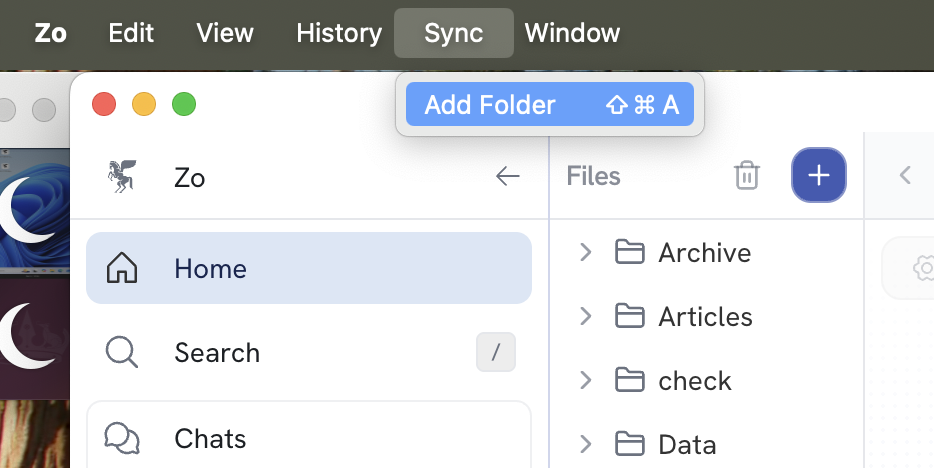
Changes made on either side will automatically sync to the other.