Hosting
zo.pub
Publish a folder to your public namespace and share a link
Every Zo comes with a public namespace at zo.pub/<your-handle>. Ask Zo to publish a folder from your workspace and you'll get a link anyone can open to browse and download the files.
Info
zo.pub is for sharing files, not for running web apps. If you want to build a website or a custom app, use Sites instead.
Publish a folder#
Just ask Zo. A few phrasings that work:
Publish this folder to zo.pubGive me a link to share these filesMake this folder public
Tip
When Zo is done publishing, it will reply with the zo.pub/... URL. Copy it
and send it to whoever needs it.
What people see when they open the link#
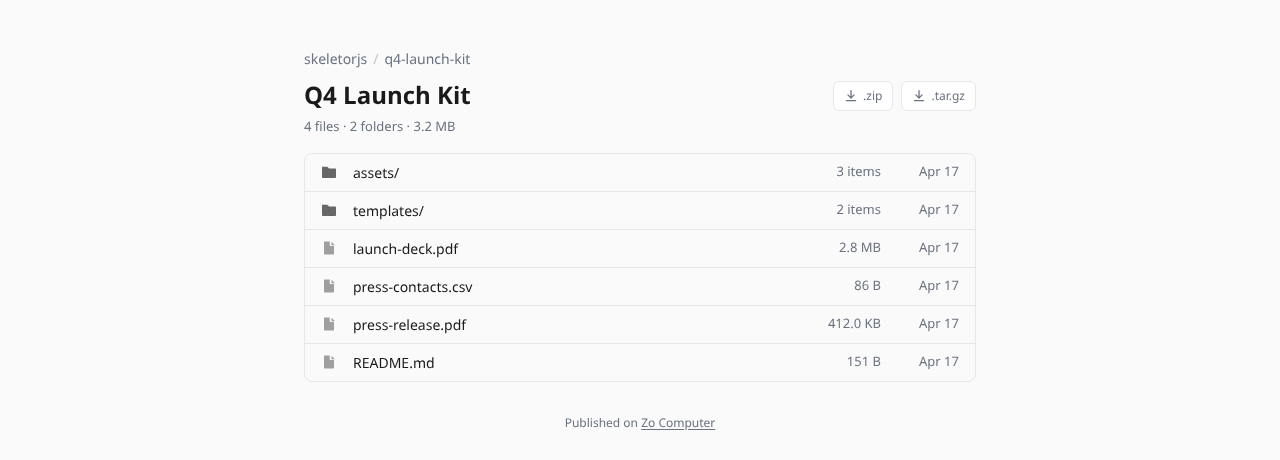
Visitors don't need a Zo account. They land on a clean listing page with the files in your folder — name, size, date — and can click any file to view or download it. Subfolders are browsable. The whole folder can also be downloaded as a single zip or tar archive.
Your public page#
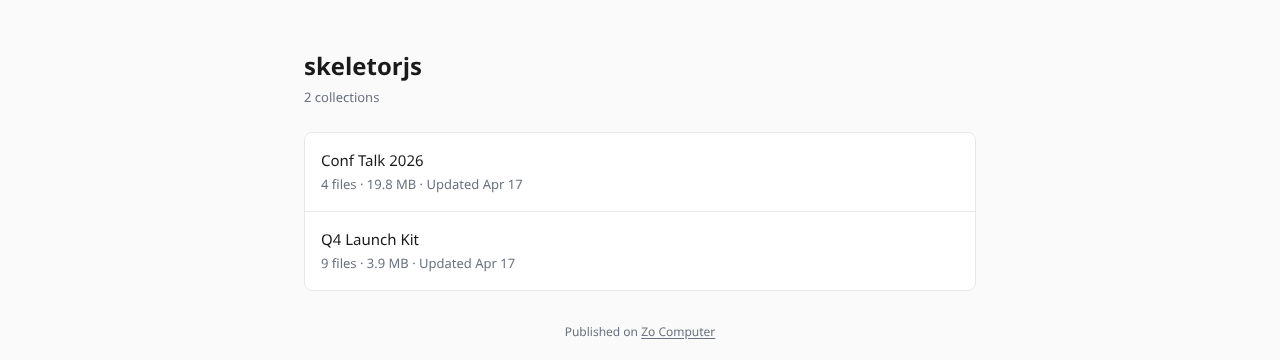
zo.pub/<your-handle> lists every folder you've published, with a quick summary of each. Anyone with your handle can bookmark this page to see what you're sharing.
URLs#
Updating or removing a folder#
Ask Zo to update or take it down:
Update my vacation folder on zo.pubRepublish this folder — I added new filesTake down the folder I published called "drafts"
Updates replace the contents of the folder at the same URL, so the link you already shared keeps working.
What zo.pub isn't#
Warning
Anything you publish to zo.pub is public. There's no private mode and no password protection. Anyone with the link can open the folder and download the files.
If you need per-user access, logins, or custom logic, use Sites or set up a custom domain with your own auth.
Good things to publish: photos, data exports, portfolio PDFs, meeting recordings, static reports, anything you'd otherwise email as a download link. Anything you wouldn't want strangers to see should stay in your Files workspace.